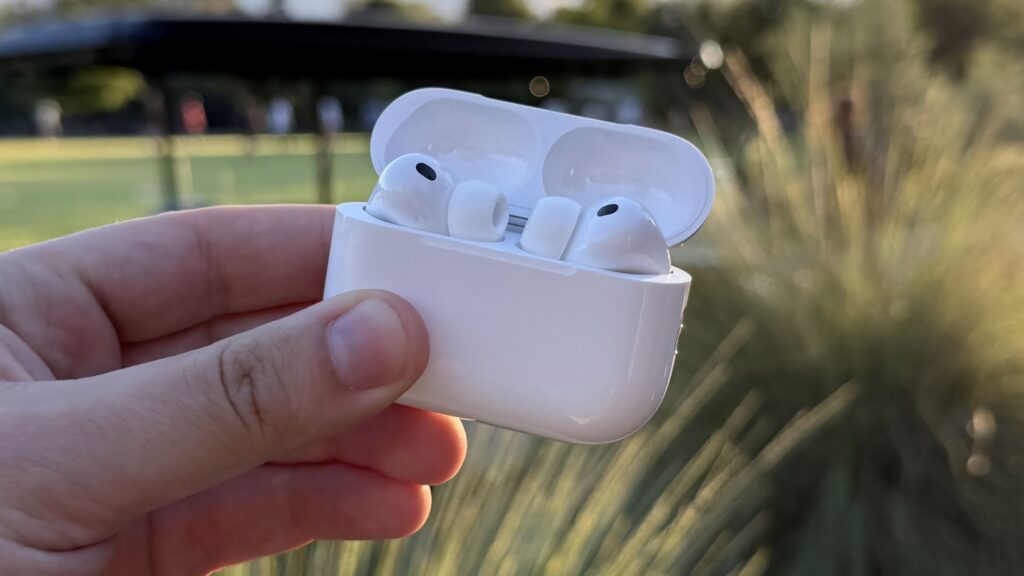
There’s a massive cold front moving across much of the US, and temperatures in New York City are in the low 20s—but it feels more like teenagers with wind chill. I still rock the AirPods Pro 3 on my walks, sure, and listen to Bruce Springsteen, but I’m eager to keep my hands in my coat pockets and rely on hands-free control.
Besides keeping my fingers crossed that the AirPods’ microphones are good enough to pick up my voice and transcribe things properly, I’ve also been relying on a lesser-known feature: gesture controls. Yes, they might make me look a little weird to people passing me on the sidewalk, but shaking my head up and down or left and right is a surprisingly simple way to have a notification read out—or not—as well as reply to a message or ignore it entirely.
Let’s break it down and explain why these head-based controls are so convenient and how they complement the hands-free experience.
Make sure Gesture Controls are enabled – and customize them
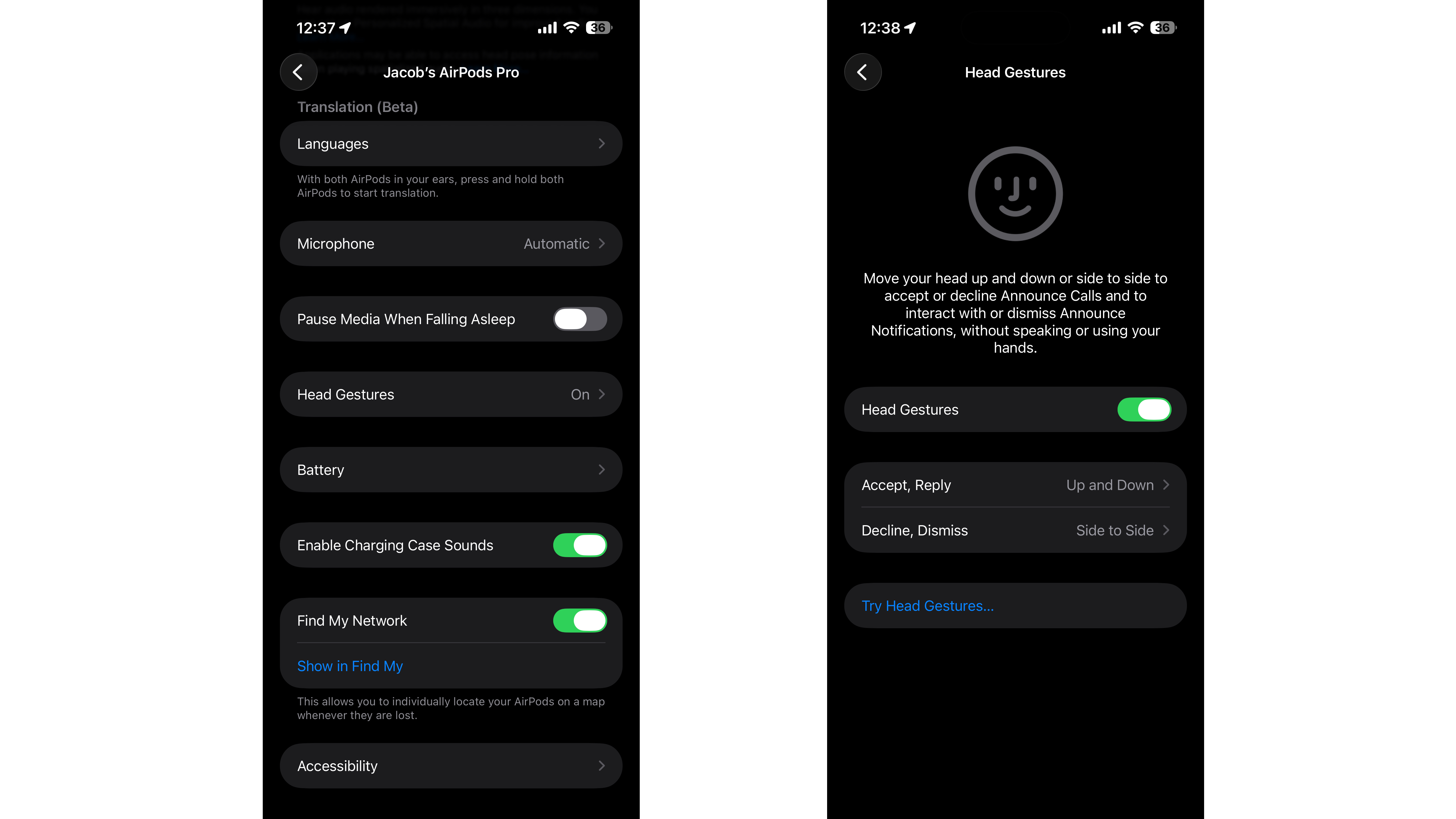
The first step is to open Settings on your iPhone while connected to your AirPods. From there, you’ll see your AirPods at the top of Settings — in my case, they show up as “Jacobs AirPods Pro.”
Tap it to open the AirPods settings panel, then scroll down to the section labeled “Head Gestures” and tap it. On that screen, you’ll find a brief explanation of how the feature works, along with the option to turn it on or off.
You can also decide which gesture – up and down or side to side – is used to accept and decline. You have to assign one to each and you can test them right there. I would recommend doing so as it may take a few deliberate head movements in the right direction to trigger the desired action.
This is also where you can adjust other controls to your liking, such as what a single press or a long press on the stem does. Of course, your options will vary depending on which model of AirPods you’re using.
Motion controls are great for getting a point across quickly
What I like best about these controls is that they’re generally faster than interrupting Siri while the assistant is in the middle of announcing a notification. They’re also far less awkward than blurting out a command when you’re walking near other people or standing in a crowded transit hub.
They also help you get back on track—whether it’s a favorite hike or a podcast—with fewer interruptions. If a long Slack message starts to be announced, for example, you can quickly shake your head from side to side to dismiss it and let the crossfade bring your audio back up.
This is especially useful if you are in a “quiet car” on your commute. In my case, NJ Transit’s first and last cars are designated quiet zones where all conversations must be kept to a whisper—making this a perfect control option since it doesn’t require you to say a word.
So yes, AirPods head controls have been around for a while, but as the temperatures continue to drop, I’d much rather shake my head and keep my hands in my pockets than trigger a command with my fingers or my voice. And it still lets me keep listening to the boss.
Follow TechRadar on Google News and add us as a preferred source to get our expert news, reviews and opinions in your feeds. Be sure to click the Follow button!
And of course you can also follow TechRadar on YouTube and TikTok for news, reviews, video unboxings, and get regular updates from us on WhatsApp also.