- A mistake meant an iPhone user sent ‘sensitive’ texts to the wrong person
- Your partner’s phone number was linked to the wrong device
- The error occurred when their partner did not properly reset their iPhone
When you sell an old iPhone, do you really know that it has been completely erased and disconnected from all your accounts? Because if you don’t, the consequences can be dire — as one unfortunate Redditor just demonstrated. This particular story should come as a warning to any iPhone user considering getting rid of their device.
The Reddit thread in question has the alarming headline “I May Have Accidentally Texted a Child Instead of My Boyfriend?” It includes screenshots showing a conversation with someone who claimed that “You have the wrong number. This is a child’s phone.”
Worse, the original poster confided that the messages mistakenly sent to the child’s device included “sensitive images” and “sensitive messages.” “I’m horrified,” they revealed.

It appears that this mix-up may be the result of the poster’s partner not completely resetting their iPhone and disconnecting it from their messaging account — something Apple specifically advises you to do if you’re selling an iPhone and replacing it with an Android device.
As a result, messages sent to their partner’s number were routed to their old device, not their new one, resulting in the humiliating situation they described. And interestingly enough, this seems to be a problem specifically associated with switching from an iPhone to an Android device.
Here’s what you can do
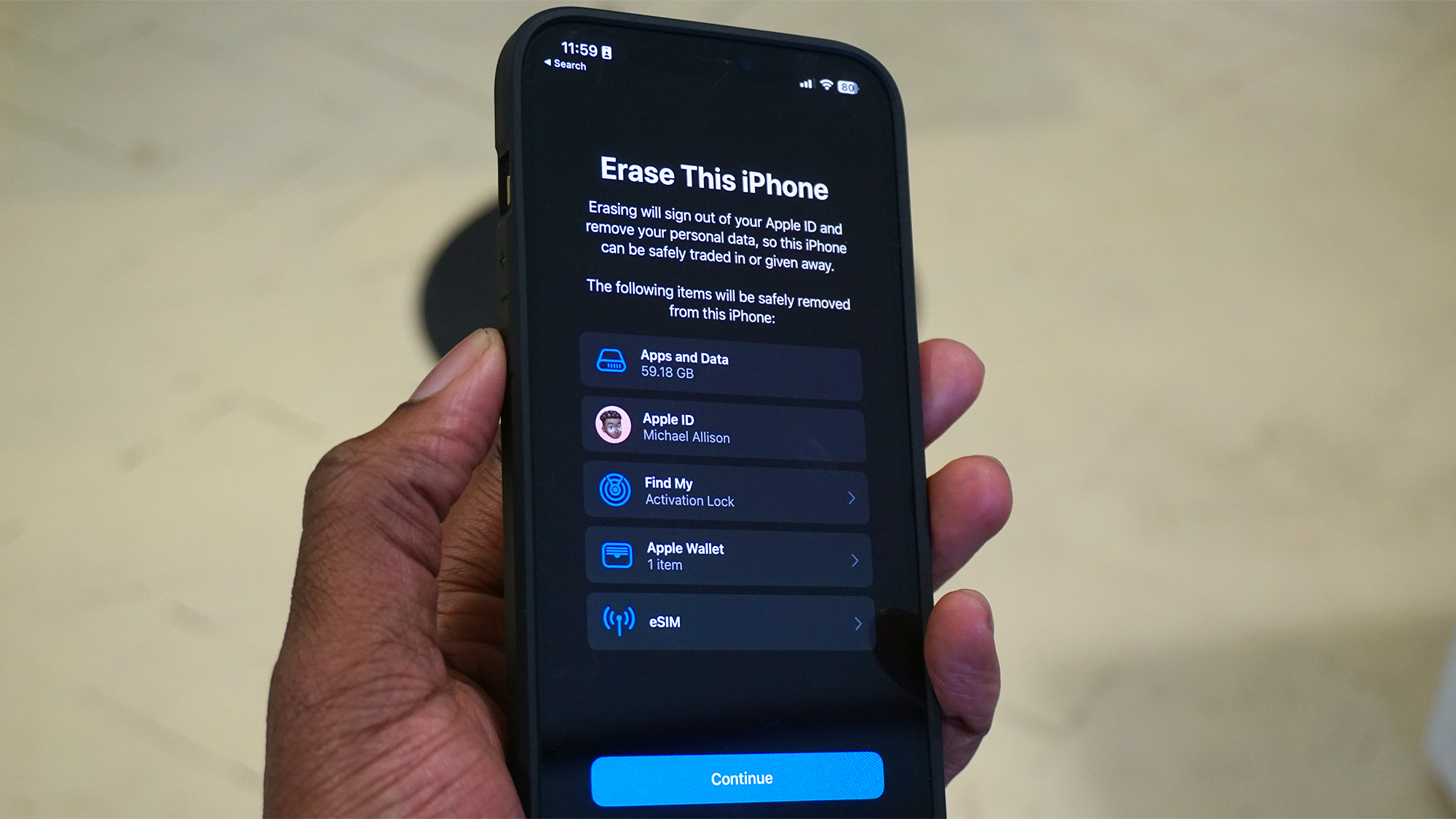
Fortunately, there are a few ways to avoid ending up in a similar situation yourself. And it’s important that you get it right. If you don’t, the potential for embarrassment is not only high, it could put your privacy and even your financial data at risk if you accidentally send it to the wrong person.
If you’re about to sell your old iPhone and replace it with an Android alternative, the first thing to do is back up your device. This is so you have a way to restore your iPhone if something goes wrong. You can back up your phone to your computer, Mac or PC – just follow Apple’s instructions and you’re good to go.
The next step is to unsubscribe from iMessage. Make sure your SIM card is in your old iPhone and you’re connected to a cellular network, then open the Settings app and go to Apps > Messages. there, disable the toggle next to iMessage to turn it off. Finally, if you got rid of the iPhone before you could unregister iMessage, Apple has a special webpage where you can do the process safely.
There are other steps to consider. Go to first Apps > FaceTime in the Settings app and turn off the switch next to FaceTime. If you have an Apple Watch, it won’t need to be paired, and if you subscribe to AppleCare+, you’ll need to transfer it to your new device or cancel your coverage. Then sign out of your Apple account by navigating to Settings > [Your Name] > Log out.
After all that is done, there are still a few steps you need to do before your iPhone is completely reset (assuming you haven’t already jailbroken it). Open the Settings app and go to General, scroll to the bottom and then tap Transfer or Reset iPhone > Erase All Content and Settings. Follow the on-screen instructions and your iPhone will be completely reset to factory settings.
Finally, the very last thing to do is to remove your old iPhone from your list of trusted devices in your Apple account. Once it’s done, you’ll be sure to get rid of it.
Keep these tips in mind when it’s time to move on from your old iPhone, especially if you want to replace it with an Android device. Otherwise, you could end up in the unfortunate position of sending texts to an unwitting recipient—along with all the potentially sensitive material those messages may contain.

Follow TechRadar on Google News and add us as a preferred source to get our expert news, reviews and opinions in your feeds.