- Windows 11’s May update has just arrived
- It packs a new Xbox mode that will be welcomed by gamers
- There are also new features for haptic touchpads, useful changes to voice typing, and updates to the Windows 11 interface in general
Windows 11’s May Update has arrived and it’s quite a busy one, bringing several changes for those who install the patch. There is some good stuff here and I will round up the highlights in this article.
Read on to find out what patch KB5089549 — which is for Windows 11 versions 24H2 and 25H2 — packs, and if you’re currently trying to decide whether it’s worth making a beeline for it. Although I’d always advise a bit of caution about jumping straight into downloading an update, as it’s worth waiting a day or two to see if there are any nasty bugs crawling around in the works.
Note that these changes may have already been caught by some people who installed the optional update for Windows 11 that was made available at the end of April (since it was a preview of this patch from May).


1. Xbox mode – a big one for gamers
One of the big changes with the Windows 11 May update is the implementation of Xbox mode. This is no doubt a long-awaited feature for many Windows 11 gamers – especially those with handhelds like the Asus ROG Xbox Ally X.
Xbox Mode is a full-screen experience (in fact, it used to be called that, or ‘FSE’ for short) with a simplified interface that’s controller-friendly, and it also reins in Windows 11’s resource usage to help games run more efficiently. When planning a gaming session, this is the mode you can switch to on handheld, laptop or desktop PCs.
Note that this feature is in a controlled rollout, which means you may not see it right away – or indeed it may take some time to arrive (and we’ve discussed that elsewhere today).
2. Haptic goodness
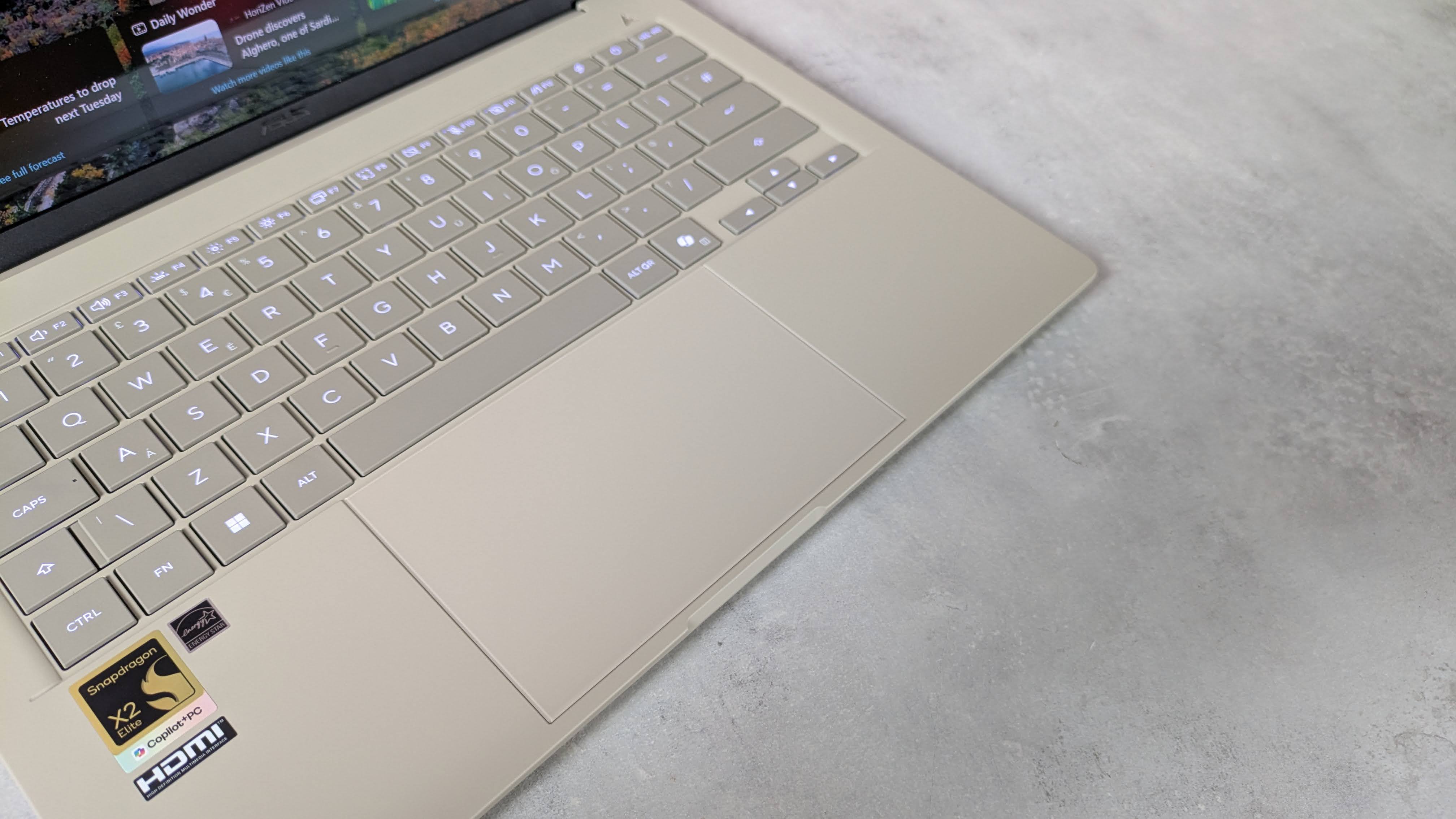
The May update brings haptic feedback to compatible input devices that will happen during certain actions — Microsoft mentions snapping or resizing windows or adjusting objects in PowerPoint. It should be a function that really improves the experience for laptops with haptic touchpads, since you can, for example, gets a nice physical ‘snap’ when these objects are aligned.
Note that this also applies to compatible stylus hardware, which includes the Surface Slim Pen 2, Asus Pen 3.0, and MSI Pen 2. Microsoft adds that some mice, like the Logitech MX Master 4, should play nice with this feature in time (but not yet — only when the hardware gets an update).
3. Voice typing is getting better
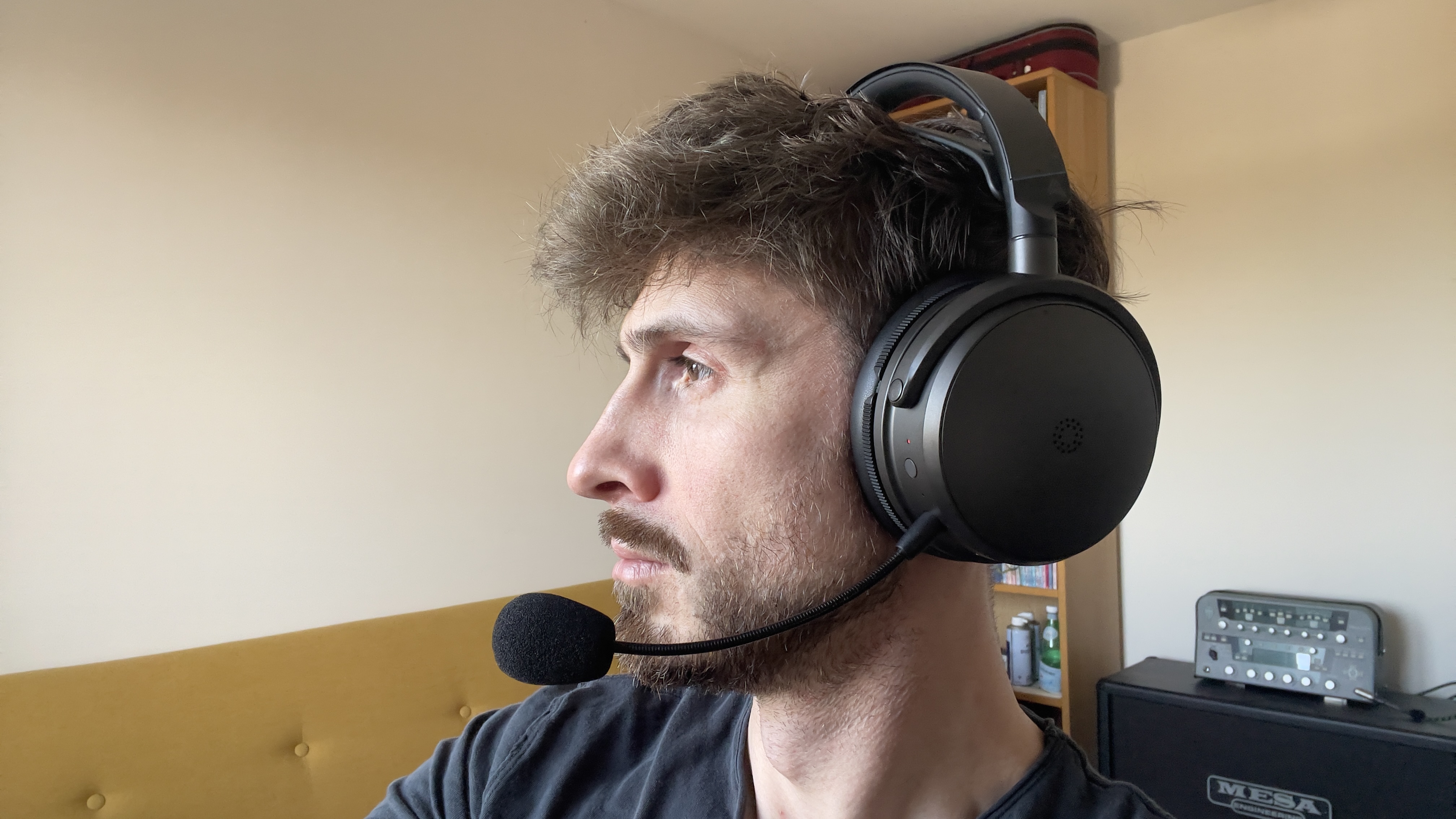
Voice typing is one of those Windows 11 features that flies under the radar, but it’s something I still use from time to time (and in the past I’ve found it invaluable and used it a lot to help stave off symptoms of repetitive strain injuries).
So it’s good to see that you can now rename files using voice typing, and on top of that, the May patch improves “the persistence of the Fluid Dictation setting in voice typing”. In other words, the Fluent Dictation feature, which removes filler words (‘you know’ or ‘like’) and automatically corrects grammar and punctuation errors, will now remember the settings you use with it (instead of randomly resetting them).
On top of that, using voice typing when you’ve pulled up Windows 11’s touch keyboard has been improved, as there’s no longer a full-screen overlay, and the voice typing animations appear directly on the keyboard’s dictation key. It’s a much nicer way of working and a useful tweak.

4. Improvement of the interface – especially for File Explorer
While not a single feature per se, a lot of work has gone into refining Windows 11’s interface and fixing issues with it, and that’s part of what makes the May Update worth downloading.
This work includes, but is not limited to, improvements to File Explorer, such as ensuring that your display (and sorting) preferences are maintained more consistently (whereas, as you may have noticed, opening certain folders resets the display layout to something else, which is very annoying). Speaking of very annoying, this new update also (finally) puts an end to the ‘flashbang bug’, where distracting white flashes appeared on the screen under certain circumstances (such as when you opened ‘This PC’).
There is also a performance tweak to ensure that File Explorer’s processes are properly put to sleep when you close it, so as not to prove an unnecessary consumption of system resources.
Away from File Explorer, Microsoft has made Windows Hello facial recognition more reliable, which will be useful for those who use it for their laptop logins. They have also improved the overall reliability of loading the system tray (at the far right of the taskbar). Certain ‘unexpected’ errors when installing apps from the Microsoft Store have also been fixed.
As this year progresses, we’ll no doubt see many more interface improvements and performance improvements, all of which will be part of the big push to fix Windows 11 in 2026.

The best laptops for all budgets

Follow TechRadar on Google News and add us as a preferred source to get our expert news, reviews and opinions in your feeds.